
Documentation
Everything you need to install, configure, and effectively use FrameTrain.
AI Training Coach ✨ – ML basics, loss curves, LoRA & more
The complete theory guide for anyone who wants to understand how ML training really works
Installation
How to set up FrameTrain on your system
1. Create an account & pay
Sign up at frame-train.com and choose a plan. After payment you'll receive your API key by email.
Create account2. Download
Download the desktop app for your operating system:
Windows
Windows 10/11 (64-bit)
macOS
macOS 11+ (Apple Silicon M1–M4 only)
Linux
Ubuntu 20.04+ (AppImage)
3. Enter your API key
On first launch you'll be asked for your API key. Enter the key you received by email. It's stored locally – you only need to enter it once.
4. Done!
FrameTrain is now ready to use. Continue to the Quick Start.
Installation successful!
FrameTrain now runs locally on your system. No server, no cloud, full control.
System Requirements
Minimum
- • CPU: 4 cores
- • RAM: 8 GB
- • GPU: NVIDIA GTX 1060 6GB or Apple M1
- • Storage: 10 GB free (50 GB+ recommended)
- • Python: 3.8 or newer – required, checked on first launch
- • OS: Windows 10/11, macOS 11+ (Apple Silicon M1–M4 only), Ubuntu 20.04
Recommended
- • CPU: 8+ cores
- • RAM: 16 GB
- • GPU: RTX 3060 12GB+ or Apple M2 Pro/Max
- • Storage: 50 GB+ free (for large models)
- • SSD recommended for fast data access
Quick Start
Your first model in 5 steps
Import a model
After signing in you land on the home screen. Switch to the Model Manager on the left and import a HuggingFace model (e.g. bert-base-uncased) or load a local model.
Just enter the HuggingFace model ID in the search field and click Download.
Upload a dataset
Upload your dataset as a CSV or JSONL file. Minimal structure: text + label columns.
FrameTrain validates the dataset automatically and shows a preview of the first rows.
Configure training
Choose epochs, batch size and learning rate – or start from a template.
The “Standard” template is a good start. The RAM estimate shows right away whether the run fits your machine.
Start training
Click Start Training. FrameTrain trains locally on your GPU – no internet connection needed.
The progress bar and live charts show loss and accuracy in real time.
Test the model
After training you can test the model right in the app. Enter text and see the predictions.
The model stays stored locally and can be reloaded at any time.
Congratulations!
You've trained your first model with FrameTrain. You'll find all saved checkpoints in the Versioning panel.
First Training Run
A complete practical example: sentiment classification
1. Create a dataset
Create a CSV file with two columns: text (your input text) and label (the category). Example:
text,label
"Das ist ein positiver Review",positive
"Mir hat das nicht gefallen",negative
"Sehr zufrieden mit dem Produkt!",positive
2. Choose a model
For text classification we recommend:
- •bert-base-uncased – good for English, fast
- •deepset/gbert-base – good for German
- •distilbert-base-uncased – smaller & faster than BERT
3. Set parameters
Recommended starting parameters for this example:
4. Observe training
During training you'll see:
- 📈 Training Loss - should decrease steadily
- 📊 Validation Accuracy - should increase toward 90%+
- ⚡ GPU Utilization - should be around 80-100%
- 💾 Time Remaining - estimated training time
Pro Tip
For your first training run, always start with few epochs (2-3) and a small dataset. That way you quickly see whether the configuration works.
Home Screen
Where you land after signing in – project status instead of a model list
Since version 1.2.46, FrameTrain opens on the home screen after login instead of the model overview. It answers a single question: what happened while you were away? The home button at the top left of the sidebar brings you back at any time. Every card is a jump into the matching area – the home screen is deliberately not a second menu.
Running now
Active trainings with progress, current epoch, step and loss – without switching to the training panel.
Since your last visit
What finished, stopped or failed since you last opened the app. The timestamp stays frozen while the page is open.
Key figures & recent runs
Models, versions including disk usage, datasets and trainings, plus the most recent trainings and tests.
Loss trend & leaderboard
Final loss of the last completed runs as a sparkline, and a ranking of the best test results by accuracy.
Needs attention
The hint panel at the top of the page runs on plain rules – no AI, no tokens, no cost. It only speaks up when there is something to report, and shows at most five hints at a time. One click jumps straight to where the problem can be fixed:
- A training run is active, but sleep is not suppressed – the machine could doze off mid-run overnight.
- A model's last run failed or was stopped, with no new attempt since (tracked per model).
- Possible overfitting: in the most recent completed run, validation loss is more than 1.5× the training loss.
- Weak test result: the most recent test scores below 60% accuracy.
- Models that have never had a completed test.
- Datasets that have never been used in a training run.
AI briefing
At the press of a button, your configured AI provider sums up the current state in a few sentences: a short intro, bullet points, and one highlighted recommendation. The briefing is stored together with a checksum of the underlying facts – as long as nothing substantial changes, the stored text is shown instead of spending tokens again. Without a configured AI assistant the card stays visible but inactive.
Never runs on its own
The briefing is only ever generated on click. Opening the home screen costs nothing – every other insight is derived locally from your own training data.
Model Manager
All your models in one place
Features
HuggingFace Import
Import any model directly from the HuggingFace Hub via model ID
Local Models
Load models from a local path (SafeTensors, GGUF, PyTorch)
Model Overview
All imported models with size, format, and origin
Versions
Each model can have multiple trained versions
Importing a model
How to import a model from HuggingFace:
- 1.Open the Model Manager tab
- 2.Click "New Model" or "HuggingFace Import"
- 3.Enter the model ID (e.g. meta-llama/Llama-3-8B)
- 4.Click Download – FrameTrain automatically downloads all necessary files
Recommended starter models
bert-base-uncased
110MClassic model for English text classification. Fast and well-tested.
Classificationdistilbert-base-uncased
66MLighter version of BERT – just as good, but twice as fast.
Classificationmicrosoft/phi-3-mini-4k-instruct
3.8BSmall LLM, ideal for LoRA fine-tuning on consumer GPUs.
LLM Fine-Tuningmistralai/Mistral-7B-v0.1
7BStrong base model. Requires QLoRA on GPUs under 24 GB VRAM.
LLM Fine-TuningTraining Panel
The heart of FrameTrain
Training Workflow
Choose model & dataset
Select an imported model and your uploaded dataset from the dropdown menus.
Configure hyperparameters
Set epochs, batch size, learning rate and more. Templates provide starting values, and the RAM estimate shows whether the run fits your machine.
Start training
Click Start Training. FrameTrain trains entirely locally – no cloud, no queue.
Monitor progress
Live charts show loss, accuracy, and GPU utilization in real time. Automatic checkpoints.
Save the result
After training, the model is automatically versioned and stored locally.
Training Controls
- Start training: Starts training with the current settings. All parameters are validated before starting.
- Stop training: Training can be stopped at any time. The last checkpoint is saved as a new version.
- Prevent sleep: While a training run is active, FrameTrain keeps your machine awake (anti-sleep) so overnight runs are not interrupted.
Templates
FrameTrain ships built-in templates for common starting points (a selection – all of them in the “Presets” section):
Standard
For most tasksSmall dataset (<5k)
More epochsLarge dataset (>50k)
Bigger batchLow RAM
FP16 + grad accumulationDataset Upload
Supported formats and best practices
Supported Formats
CSV (.csv)
JSONL (.jsonl)
JSON (.json)
HuggingFace Hub
How to upload your dataset
- 1.Click "Dataset" in the left panel
- 2.Choose "Upload File" or "HuggingFace Dataset"
- 3.Select your CSV/JSONL file
- 4.FrameTrain validates the file and shows a preview
- 5.Configure the text column and label column
Dataset preparation
Important notes for preparing your data:
- Minimum size: At least 100 examples per class for meaningful results.
- Class balance: Try to have roughly equal numbers of examples per class.
- Text length: Texts can vary, but very short texts (<5 words) can hurt quality.
- Train/val split: FrameTrain splits the dataset automatically (80/20). You can adjust the split manually.
Dataset Builder
Build your own image, text, audio and video datasets – collect, label, check, export
No ready-made dataset? Since version 1.3.4 you build it right inside FrameTrain: collect data, label it, check it and hand it straight to training – locally on your machine, with provenance for every file.
How it works
The builder is not a one-way import but a loop: after training, the Laboratory shows where your model gets it wrong – and exactly those samples go back to be labeled.
- 01
Collect
Folders, mic, web, AI
- 02
Label
Keyboard, 1 to 9
- 03
Get suggestions
Least certain first
- 04
Check quality
Duplicates, balance
- 05
Export
Leak-free splits
- 06
Train
Matching plugin
- 07
Test in the Laboratory
Right or wrong?
Wrong and uncertain results from the Laboratory go back to the builder as new work.
Seven project types
You choose what you want to train – not a file format. Each project type exports exactly the format the matching training plugin reads.
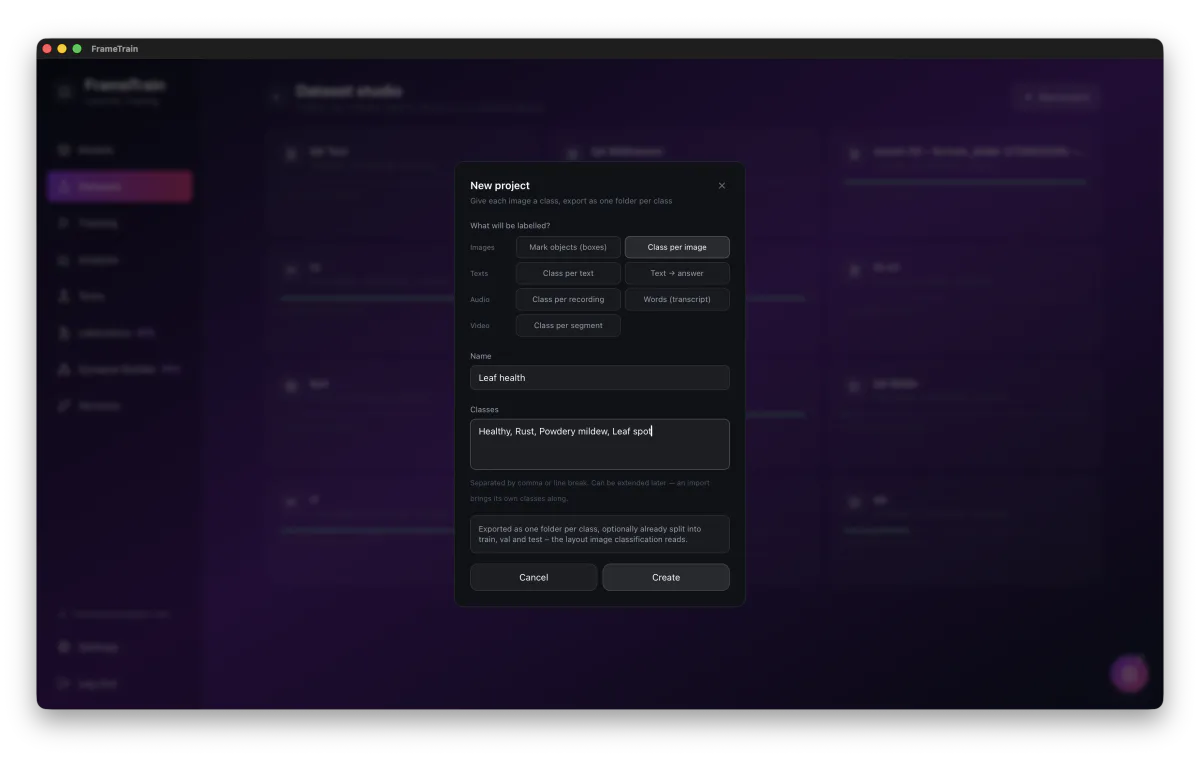
| Project type | Export | Trains with (examples) | Suggestions by |
|---|---|---|---|
| Mark objects (boxes) | YOLO: images/, labels/, classes.txt | YOLOv8, YOLO11 | YOLO model |
| Class per image | One folder per class | ViT, ResNet, ConvNeXt, Swin | Image classifier |
| Class per video segment | Cut clips, one folder per class | VideoMAE, TimeSformer, ViViT | Video classifier |
| Class per text | daten.csv with text and label | BERT, DistilBERT, XLM-RoBERTa, DeBERTa | Text classifier |
| Text → answer | daten.jsonl with source and target | T5, mT5, BART | Text-to-text model |
| Class per recording | One folder per class (WAV) | Wav2Vec2, HuBERT, WavLM, AST | Audio classifier |
| Wording (transcript) | Recording with a .txt of the same name | Speech-to-text models | Whisper, Wav2Vec2-CTC |
If no matching model is available yet, the app names one to download when you export – for example MCG-NJU/videomae-base for video or openai/whisper-small for transcripts.
All features
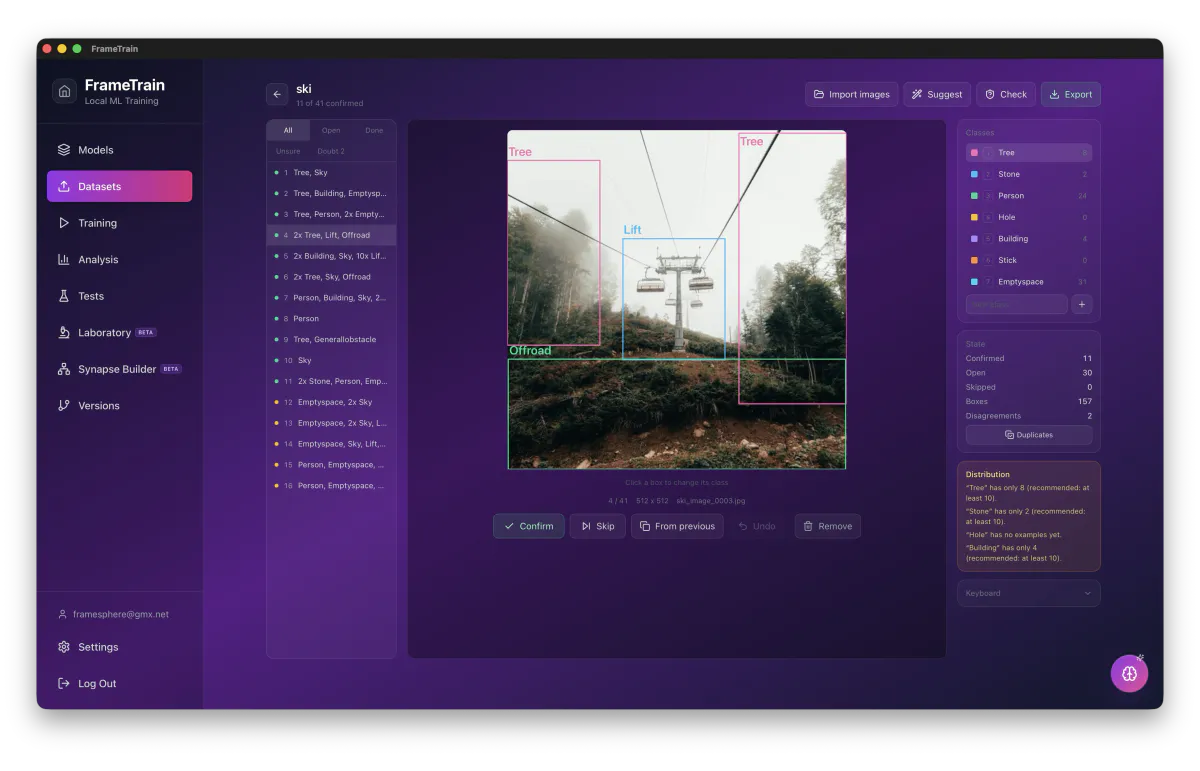
Import
Folders (subfolder = class), existing FrameTrain datasets, CSV, JSONL, TXT, YOLO labels, frames from videos and images from the clipboard. Keep working on half-finished datasets instead of starting over.
Record
Microphone right in the app, saved as 16 kHz mono WAV – speech and sound data without a second program.
Create
Write texts yourself, one by one or as a list, or let the AI assistant generate examples per class – with preview and correction.
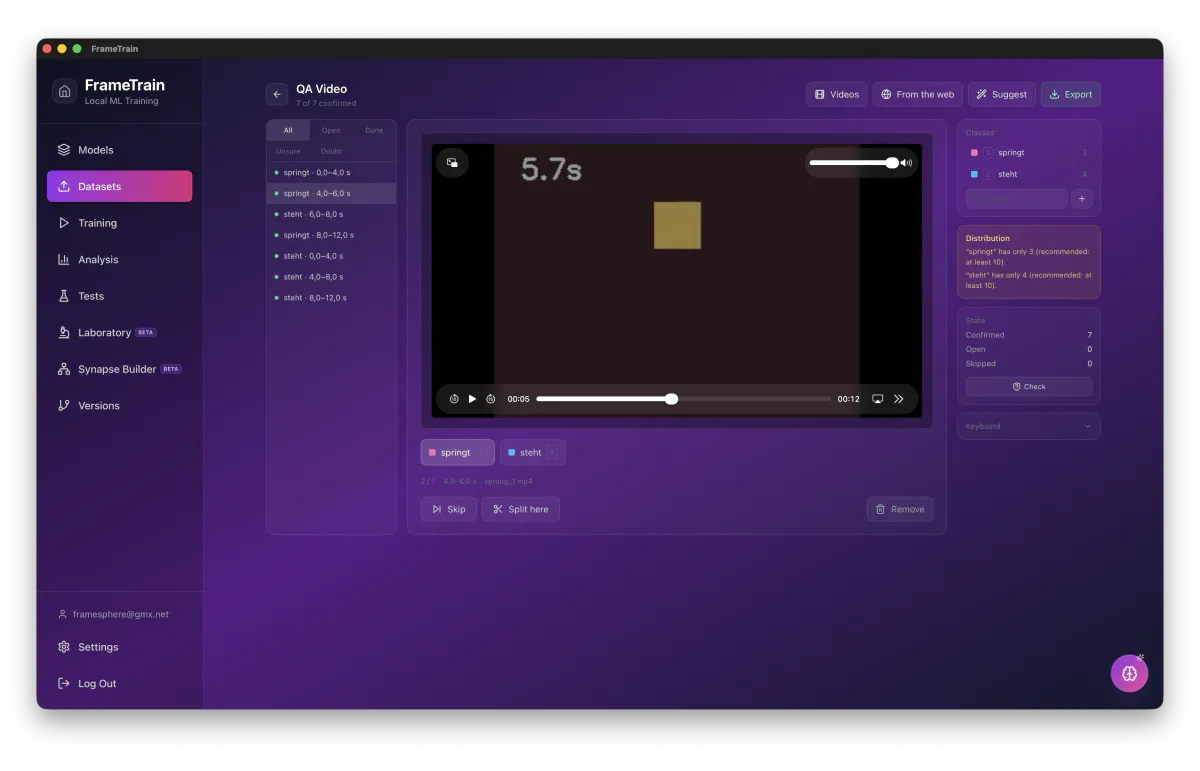
Video
Split videos into fixed-length segments; a segment plays only its part, X splits it at the current position. Clips are cut only on export.
Label
Keyboard for everything (1 to 9, Enter, S, N, arrows) plus a context menu. For boxes: draw, move, copy, duplicate, zoom, undo.
Model suggestions
A trained model suggests boxes, classes, transcripts or answers. Nothing counts as confirmed until you press Enter.
Active learning
The “Uncertain” filter shows the least confident suggestions first – your time goes where the model learns the most.
Review
The model looks at confirmed samples; contradictions end up in the “Doubt” filter. That is how you find errors in imported labels.
Quality
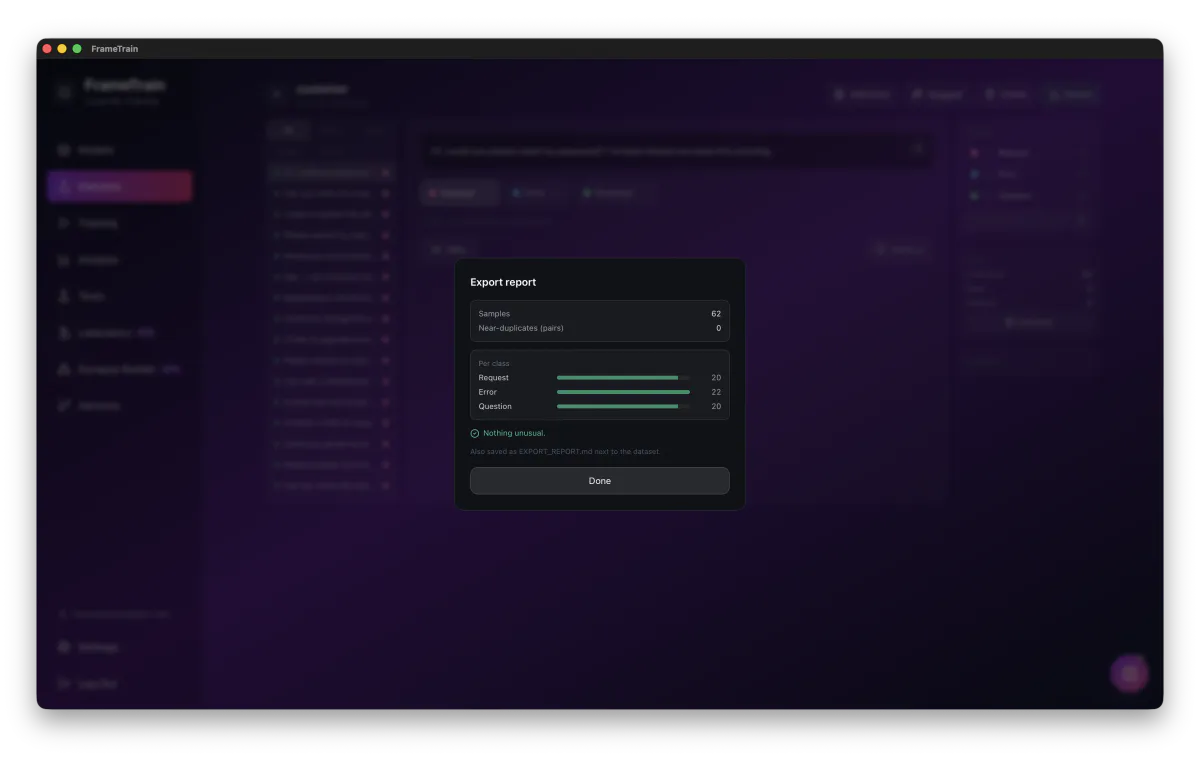
Near-duplicates for texts and images with a dialog to sort them out, balance warning per class, warning when there is only one class.
Export
Split into train, val and test by group – segments of one video, page or recording stay together. Plus EXPORT_REPORT.md, PROVENANCE.csv and DATA_CARD.md.
Data from the web – politely
FrameTrain collects images, audio, video and text paragraphs from the web like a polite visitor: robots.txt is respected, every server gets pauses, and every file keeps its origin. It fetches originals, not thumbnails.
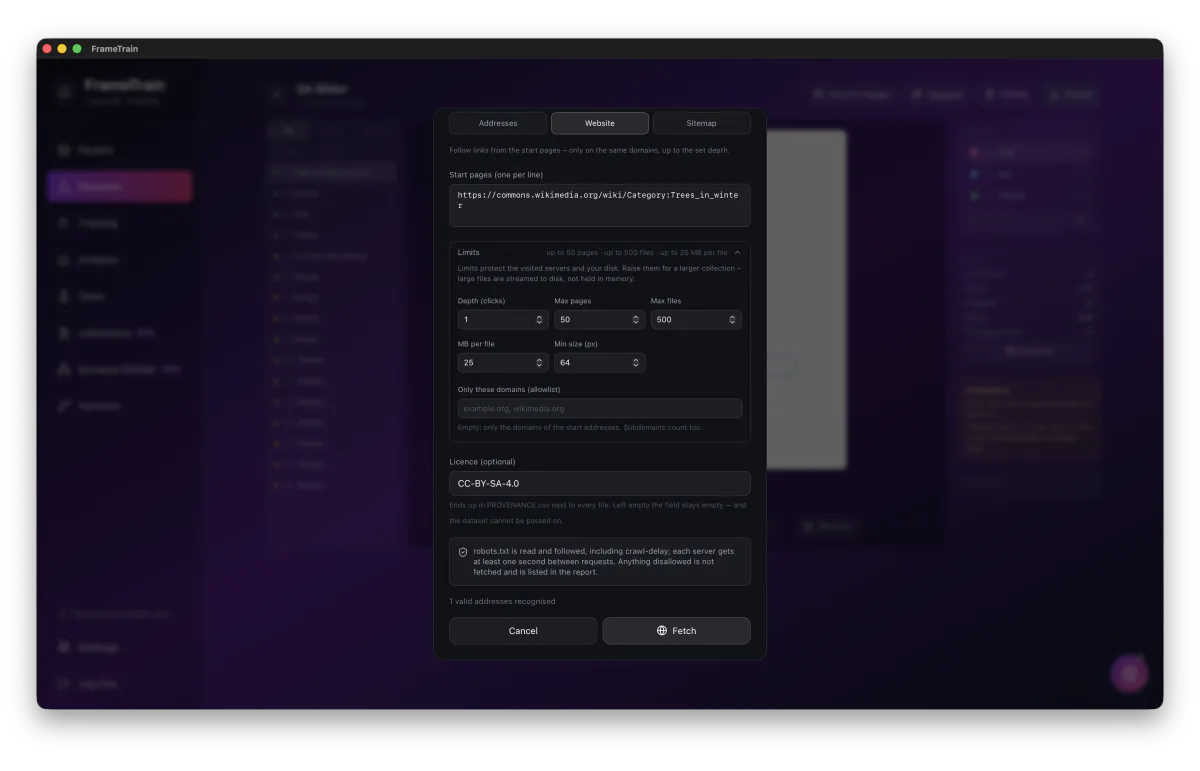
URLs
Each address on its own – a gallery, an article or a list of direct files.
Website
Follow links from start pages up to the chosen depth and page count, on the same domains only – a blog or documentation, for example.
Sitemap
The pages from sitemap.xml, including sitemap indexes and robots.txt – targeted and complete for large websites.
Rules that always apply
- robots.txt is read and respected, including Crawl-delay; anything disallowed is listed in the report.
- At least one second between requests per server.
- Domain allowlist; without one, a crawl stays on the domains of the start URLs.
- Size limit per file; large files are streamed straight to disk.
- Defaults: images 500 files at 25 MB, audio 300 at 200 MB, video 100 at 4 GB, texts 2000 paragraphs.
- Icons and tracking pixels are dropped; for text, navigation, headers and footers are dropped.
- Every file carries its URL, source page and stated license; samples from one page stay together when splitting.
- Stop at any time – whatever has been fetched stays.
Ready without prior knowledge
Create a project, fetch data, label with number keys, export – you can do that without a manual. Project types are named after the goal instead of formats, matching models are preselected, and the app warns in plain words about too few examples, unbalanced classes, an empty validation set, copies across splits and missing licenses. Model suggestions stay suggestions, and removing needs a second click.
Not included yet (as of 1.3.4)
- No mask segmentation and no SAM or CLIP assistance – boxes are drawn or suggested by a model.
- No marking of individual words in texts (named entities).
- No camera or screen recording as a source.
- Pages that load their content via JavaScript yield little; search and image search APIs are not connected.
- No COCO export and no augmentation on export.
- Near-duplicates only for texts and images; for audio and video, exact copies are detected.
Analysis
Understanding and interpreting training metrics
Key Metrics
Training Loss
↓ decreasingMeasures the model's error on the training data. Should decrease continuously during training.
Validation Loss
↓ decreasingError on the validation data. Shows generalization ability. If much higher than train loss: overfitting.
Accuracy
↑ increasingProportion of correctly classified examples. For classification tasks. Good from ~85%.
Gradient Norm
stable <5Magnitude of the gradients. With very large values (>10), gradient clipping can help.
Common Problems
Overfitting
Train loss decreases, validation loss increases. The model memorizes training data instead of generalizing.
Solution: more data, more dropout (0.1-0.3), fewer epochs, or a larger dataset.
Underfitting
Both losses decrease slowly or not at all. The model isn't learning enough.
Solution: more epochs, higher learning rate, higher LoRA rank, or a different model.
Testing & Inference
Test trained models directly in the app
Features
- Direct input: Enter any text and see the model's prediction immediately.
- Confidence scores: Shows the probability for each class.
- Batch testing: Test multiple texts at once from a file.
- Version comparison: Compare predictions across different model versions.
Example
Input:
"This product is fantastic! I'm very satisfied."
Output:
Versioning
Automatic versioning of all training artifacts
What gets versioned?
After every training run, FrameTrain automatically saves: model weights, training parameters, metrics, dataset reference, and a timestamp.
Versioning Workflow
After a successful training run, a checkpoint is created automatically.
Give your version a descriptive name (e.g. "v1.0-sentiment-en").
Select two versions and compare their metrics side by side.
Export any version to your Downloads folder – as a copy of all the files the training run produced.
Training History
In the history panel you can see all past training runs with:
- •Date & time
- •Model & dataset used
- •Final loss and accuracy
- •Hyperparameters used
- •Training duration
AI Assistant & Coach
Coach with skills, token budget, providers and API keys – optional AI help in every area
The AI features are optional and switched off by default. You enable them under Settings → AI Assistant, where you also choose the provider, model and token budget. These settings apply to every AI feature in the app. Training itself does not depend on them and always runs locally.
Providers and API keys
You can choose Claude (Anthropic), OpenAI, Groq or Ollama. Claude, OpenAI and Groq need your own API key from that provider. Ollama runs entirely on your machine without a key.
- One key per provider: Claude, OpenAI and Groq each keep their own key. Switching providers no longer loses a key, and the provider tiles show “Key stored”. Keys from older versions are migrated automatically.
- Stored securely: Keys live in your operating system's keychain (macOS Keychain, Windows Credential Manager), never in plain text, and are never sent to FrameTrain.
- Nothing gets lost by accident: Changes only take effect after “Save”. Saving with an empty key field does not delete a stored key. “Test connection” checks both key and model.
- Custom model ID: If a provider retires a model, you can enter the new ID yourself. OpenAI reasoning models (o-series, GPT-5) are supported.
- Ollama: The context window grows with the prompt instead of silently truncating it. If the selected model is not installed locally, the app explains what to do. Internal <think> blocks no longer show up in the chat.
Token budget
The token budget controls, for every AI feature at once, how long answers get, how thoroughly the model reasons, how much context is sent and how much chat history is kept. With Claude, reasoning effort scales with the budget. Every level works fully: Minimal means short, not broken – no empty reports, empty chat bubbles or cut-off answers.
Maximum and Unlimited take time
At these levels the loading indicator tells you an answer can take up to a minute. Well-defined tasks such as code fixes or chat titles still cap the reasoning effort so they stay fast. If an answer is cut off at the limit, the app marks it.
AI coach
The coach is a chat window you can open on every page. With every message it knows the current state of the page – your training configuration, the analysis figures (loss reduction, overfitting gap, gradient norm, duration, status) or the home screen status – and answers about that instead of in generalities. It quotes hints the way the page words them, and every chat keeps its history.
Apply buttons
Concrete suggestions appear as buttons right below the answer – only where they have an effect on the current page, and never for settings the model type ignores.
RAM estimate
Coach and training panel use the same formula and compare the result with your machine's memory: “fits”, “tight” or “not enough”. For image models the image size (imgsz) counts.
Knows your model
The coach knows the parameters of the responsible plugin, such as imgsz or the optimizer for YOLO, and never recommends something the model type does not support.
Start and stop training
With automation switched on, the coach may start or stop a training run – each time only after you confirm.
Skills: prepared questions via /
Type / in the coach's input field and a list of prepared questions for the current page opens. Pick one with the arrow keys and Enter, with Tab or by clicking. Skills cost no extra tokens – they just ask the question more precisely than “help me out”.
| Page | Skills |
|---|---|
| Everywhere | /here, /next |
| Home | /status |
| Models | /pick-model |
| Training | /config, /ram, /oom, /faster |
| Dev Train & Dev Test | /review, /error |
| Datasets | /data |
| Analysis | /assess, /next-run, /curves |
| Tests | /result |
| Versions | /version |
| Settings | /budget, /provider |
| Laboratory | /experiment |
| Synapse Builder | /graph |
AI in the individual areas
- Code assistant (Dev Train, Dev Test): Suggests changes to your script as a diff. Applied code contains no leftover Markdown or protocol fragments. If a suggestion does not fit the script, it is marked red as “not applicable” and the script stays untouched. Paths follow the app convention via os.environ.get(...).
- Metrics assistant (Training): Recommends training parameters, including plugin parameters such as those for YOLO, and only shows real changes compared with your current configuration.
- Training analysis: Writes a report for a model version. Its depth scales with the budget, and long runs are sampled. Follow-up questions in the analysis chat are answered directly instead of producing a whole new report each time.
- Synapse Magic: Builds or changes graphs in the Synapse Builder and then reports “Done – N changes on the canvas”.
- Laboratory and home screen: The lab assistant helps you experiment with individual samples, and the AI briefing sums up your project status at the press of a button.
What is sent to the provider
With Claude, OpenAI or Groq, the context of your request is sent to that provider – for example configuration, figures or script code. With Ollama everything stays on your machine. As long as the AI assistant is switched off, none of it leaves the app.
Training Basics
The most important concepts in ML training
Fine-Tuning vs. Training from Scratch
Fine-tuning (recommended)
- • Starts from a pretrained model
- • Needs less data (100-10,000)
- • Much faster (minutes instead of weeks)
- • Better results on small datasets
Training from scratch
- • Train a model from zero
- • Needs huge amounts of data (millions)
- • Very time-consuming (weeks to months)
- • Requires massive GPU resources
Epochs & Batches
Epoch: One complete pass through the entire dataset. Batch: A subset of the dataset processed simultaneously. Steps: Number of parameter updates = dataset size / batch size.
Example: 1000 data points, batch size 32:
1 Epoch = 1000 / 32 = ~31 Batches ✓
Loss & Accuracy
Training Loss
Measures the model's error. Lower loss = better predictions. Computed at every parameter update.
Accuracy
Measures the proportion of correct predictions. For classification: % of correctly classified examples. Goal: as high as possible.
Hyperparameters
Key parameters and their effects
Key Hyperparameters
Learning Rate
Default: 2e-4How large the parameter updates are. Too high: training diverges. Too low: training is too slow.
Range: 1e-6 to 1e-3
💡 Start with 2e-4 for LoRA, 2e-5 for full fine-tuning
Batch Size
Default: 4How many examples are processed simultaneously. Larger batches = more stable updates but more VRAM.
Range: 1 to 64
💡 Halve the batch size if you run into VRAM issues
Epochs
Default: 3How many times the entire dataset is passed through. More epochs can lead to overfitting.
Range: 1 to 20
💡 3-5 epochs is optimal for most tasks
LoRA Rank (r)
Default: 16Size of the LoRA matrices. Higher rank = more capacity but more VRAM and training time.
Range: 4 to 64
💡 r=16 is a good default. For limited VRAM: r=8
Max Seq Length
Default: 2048Maximum token count per input. Longer sequences = more VRAM.
Range: 128 to 4096
💡 Adjust to the average text length of your data
LoRA Training
Parameter-efficient fine-tuning
What is LoRA?
LoRA (Low-Rank Adaptation) is a method for adapting language models with a fraction of the VRAM of full fine-tuning. Instead of updating all model parameters, LoRA inserts small "adapter" matrices.
These adapters are trained while the original base model stays frozen. Result: 70-90% less VRAM with comparable quality.
LoRA vs. Full Fine-Tuning
Full Fine-Tuning
- • All parameters are trained
- • 60-80 GB VRAM for a 7B model
- • Very slow
- • Changes are permanently baked into the model
LoRA Fine-Tuning
- • Only adapter matrices are trained
- • 8-18 GB VRAM for a 7B model
- • Much faster
- • Adapters are separate files
LoRA Configuration
LoRA Rank (r)
Size of the low-rank matrices. Higher rank = more capacity. Default: 16
LoRA Alpha
Scaling factor for the LoRA weights. Usually set to the rank value. Default: 32
LoRA Dropout
Dropout rate for LoRA layers. Helps against overfitting on small datasets. Default: 0.05
Target Modules
Which layers are adapted. Default: q_proj, v_proj. More modules = more capacity
Enabling QLoRA
For 4-bit quantization (QLoRA), enable "4-bit Loading" in the Training Panel. Reduces VRAM requirements by ~50%.
Dataset Formats
All supported formats in detail
CSV Format
Simplest format. First row = header. Required fields: text, label.
text,label
"Dies ist positiv",positive
"Das gefällt mir nicht",negative
"Sehr gut!",positive
"Schrecklich",negative
JSONL Format
One JSON object per line. More flexible than CSV for complex structures.
{
  "text": "Dies ist positiv",
  "label": "positive",
  "source": "review"
}
{
  "text": "Das gefällt mir nicht",
  "label": "negative",
  "source": "comment"
}
Best Practices
- Data volume: At least 100, ideally 500+ examples per class.
- Class balance: Similar number of examples per class for balanced training.
- Splitting datasets: 80% training, 20% validation. FrameTrain does this automatically.
- Cleaning text: Remove HTML tags, special characters, double spaces.
- Consistent labels: Label spelling must be consistent ("positive" != "Positive").
Monitoring
Track training progress in real time
Live Monitoring Panel
During training, FrameTrain shows the following real-time information:
- GPU utilization: VRAM usage and GPU temperature in real time
- Loss curves: Training loss and validation loss as interactive line charts
- Accuracy chart: Accuracy trend and gradient norm
- Time estimate: Elapsed time and estimated time remaining
Automatic Checkpoints
FrameTrain automatically saves checkpoints:
- At the end of every epoch
- When validation loss improves (best model saving)
- On manual stops
- As complete model snapshots
Optimization
Make training faster and more memory-efficient
Batch Size Optimization
Batch size is the most important factor for VRAM usage and training speed:
LoRA vs. Full Fine-Tuning
For most use cases, LoRA is the better choice:
Standard fine-tuning:
Updates all parameters, lots of VRAM, slow.
LoRA fine-tuning:
Trains only adapter matrices, low VRAM, fast, comparable results.
Gradient Checkpointing
Enable gradient checkpointing in the training settings to save ~30-40% VRAM. Training becomes a bit slower, but you can train larger models.
Example: 7B model with LoRA: 18 GB VRAM → with gradient checkpointing: 12 GB VRAM
GPU Setup
Configuring NVIDIA CUDA and Apple Silicon
NVIDIA CUDA Setup
FrameTrain detects NVIDIA GPUs automatically. Requirements:
Install NVIDIA drivers
Download and install the latest driver from nvidia.com/drivers (version 525+).
CUDA automatically
CUDA is automatically installed with FrameTrain – no separate installation needed.
Verify the GPU
In the app: Settings → System → Hardware & acceleration. It shows whether CUDA is available.
Apple Silicon (M1-M4)
Apple Silicon is fully supported – no additional configuration needed. FrameTrain automatically uses Metal Performance Shaders (MPS) for GPU acceleration.
Supported Hardware
NVIDIA GPUs (CUDA)
- • GTX 1060 6GB (minimum)
- • GTX 1080 Ti
- • RTX 2080/2080 Ti
- • RTX 3060/3070/3080/3090
- • RTX 4060/4070/4080/4090
- • A100, A6000, H100 (workstation)
Apple Silicon (MPS)
- • M1 (8 GB+ unified memory)
- • M1 Pro / M1 Max
- • M2 / M2 Pro / M2 Max / M2 Ultra
- • M3 / M3 Pro / M3 Max
- • M4 / M4 Pro / M4 Max
Export
Export trained versions and use them elsewhere
What gets exported
Version folder
A copy of all the version's files in your Downloads folderModel weights
In the plugin's format, e.g. SafeTensors for HuggingFace models, .pt for YOLOConfiguration & tokenizer
Everything needed to load the model againGGUF
No built-in export – convert with llama.cpp if you need itUsing the result
- In FrameTrain: Check the version right away under Tests or in the Laboratory on real samples.
- HuggingFace Transformers: Load HuggingFace models from the exported folder with from_pretrained().
- Your own application: Plug the exported folder into your own Python scripts or services.
- SphereNet: Sharing models with the community is in preparation.
Troubleshooting
Solutions for common problems
Common Errors
CUDA out of memory
Cause: Batch size too large, Model too large for VRAM
Solution: Halve the batch size, enable gradient checkpointing, use QLoRA instead of LoRA.
Training loss explodes (NaN/Inf)
Cause: Learning rate too high, Data issue
Solution: Reduce the learning rate by a factor of 10. Check the dataset for NaN values.
Invalid FrameTrain API key
Cause: Key expired, Wrong format
Solution: Generate a new key on the payment page. Make sure there's no whitespace at the start/end.
GPU not detected
Cause: Driver outdated, CUDA not installed
Solution: Update the NVIDIA driver (525+). On Windows: Device Manager → NVIDIA. On Linux: nvidia-smi.
Model download fails
Cause: No internet connection, Gated model without access
Solution: Check your internet connection. Models that require approval on huggingface.co (e.g. Llama) cannot be loaded directly in the app – pick a freely available model, or download it beforehand and import the folder as a local model.
RAM estimate says “not enough”
Cause: Batch too large, Model too large for your memory, For image models: imgsz too large
Solution: The RAM calculator in the training panel only suggests measures the model type supports – for YOLO that is batch, imgsz and FP16. Ask the coach with /ram for the most effective lever for your run.
Ollama model not found
Cause: Model is not installed locally, Ollama is not running
Solution: Run ollama pull with the model name in a terminal (e.g. ollama pull llama3.2) and check that Ollama is running in the background.
Groq reports a rate limit
Cause: Budget Quality or higher on the free tier (6,000 tokens per minute)
Solution: Set the budget to Balanced or Minimal, or wait a moment. Use /budget on the settings page to ask the coach which level suits your provider.
AI answer empty or cut off
Cause: Token budget very small for a long task, Provider returned no text
Solution: Empty answers show an explanatory error instead of an empty bubble, and cut-off answers are marked. Choose a larger token budget under Settings → AI Assistant and send the message again.
Settings
Configure FrameTrain
All Settings
Account
Email, user ID and your FrameTrain API key (license key), plus your community name for uploads to the Open Library.
Appearance
18 color schemes, from Purple Passion (default) to the light themes Light Gray and Pure White.
Language
German or English. The change applies immediately, no restart needed.
Notifications
Desktop notifications when a training run finishes, on errors and warnings, and when updates are available.
AI Assistant
AI features on or off, provider (Claude, OpenAI, Groq, Ollama), model, one API key per provider and the token budget. Details in the “AI Assistant & Coach” section.
System
Status of the Python packages used for training with “Install missing”, hardware and GPU acceleration, and the anti-sleep status that keeps your machine awake during training.
Updates
Installed and available version, check on demand.
Documentation & Support
Links to the documentation and the AI Training Guide, support tickets straight from the app.
About
App version, model families supported by the train engine, and links.
Themes
Settings → Appearance: 18 color schemes
Dark Themes
16 dark color schemes, the default is Purple Passion:
Purple Passion
Dark Mode
Ocean Breeze
Dark Mode
Forest Green
Dark Mode
Sunset Orange
Dark Mode
Midnight Blue
Dark Mode
Rose Gold
Dark Mode
Dark Minimal
Dark Mode
Cyber Yellow
Dark Mode
Arctic White
Dark Mode
Neon Pink
Dark Mode
Blood Red
Dark Mode
Toxic Green
Dark Mode
Golden Hour
Dark Mode
Monochrome
Dark Mode
Lavender Dream
Dark Mode
Fire & Ice
Dark Mode
Light Themes
For working in bright daylight:
Light Gray
Light Mode
Pure White
Light Mode
Presets
Built-in templates in the training panel
Built-in templates
Standard
Small dataset (<5k)
Large dataset (>50k)
Low RAM
LoRA (memory-saving)
QLoRA 4-bit
Your own templates
Your own templates can come from the AI training analysis, for example: save the parameter suggestion as a template with one click and it shows up in the training panel next to the built-in ones.
Updates
Keep FrameTrain always up to date
Automatic Updates
FrameTrain automatically checks for a new version at startup.
- Windows and Linux: on request, the app downloads the signed update, installs it and restarts.
- macOS: the app tells you about the new version; you get the download from the dashboard on frame-train.com.
- Under Settings → Updates you see the installed and available version and can check again at any time.
- Your settings and data are preserved during an update.
Checking your version
You can find your current version under:
Settings → About