FrameTrain screenshots: what local ML training looks like
No mockups, and no video that loops back to the start after two minutes. The screenshots below show the desktop app as it runs on your machine, in the order you meet it: first the home screen you land on after signing in, then importing a HuggingFace model, configuring training, and finally loss curves and model versions. Each section explains what the panel does and where it sits in the workflow.
All screenshots come from the English interface. The app is fully bilingual – switch the language to see the same panels in German.
01
Home screen – what happened while you were away
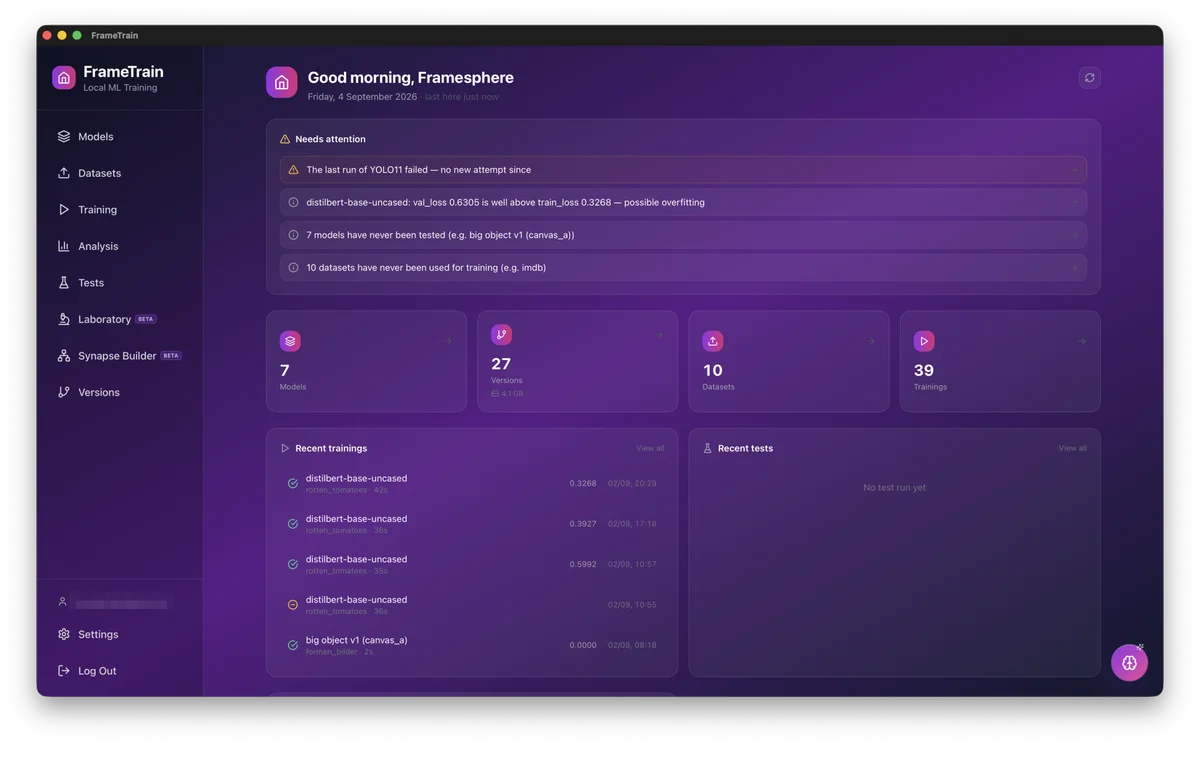
After signing in, FrameTrain no longer drops you into the middle of the model list. It opens on an overview of where the project stands: is a training run in progress, and how far along is it? What finished or failed since your last visit? Below that sit the key numbers including disk usage, the most recent trainings and tests, the loss trend across recent runs, and a leaderboard by accuracy. Every tile is a jump into the matching area – the home screen is a status report, not a second menu. The home button at the top left of the sidebar brings you back at any time.
The home screen: what needs attention up top, key figures and recent runs below – every card leads straight into the matching area.
Running trainings with progress, plus results since your last visit
"Needs attention" warns from plain rules – no AI involved, no cost
AI briefing on demand, stored and only regenerated when facts change
02
Model management – HuggingFace and local models in one place
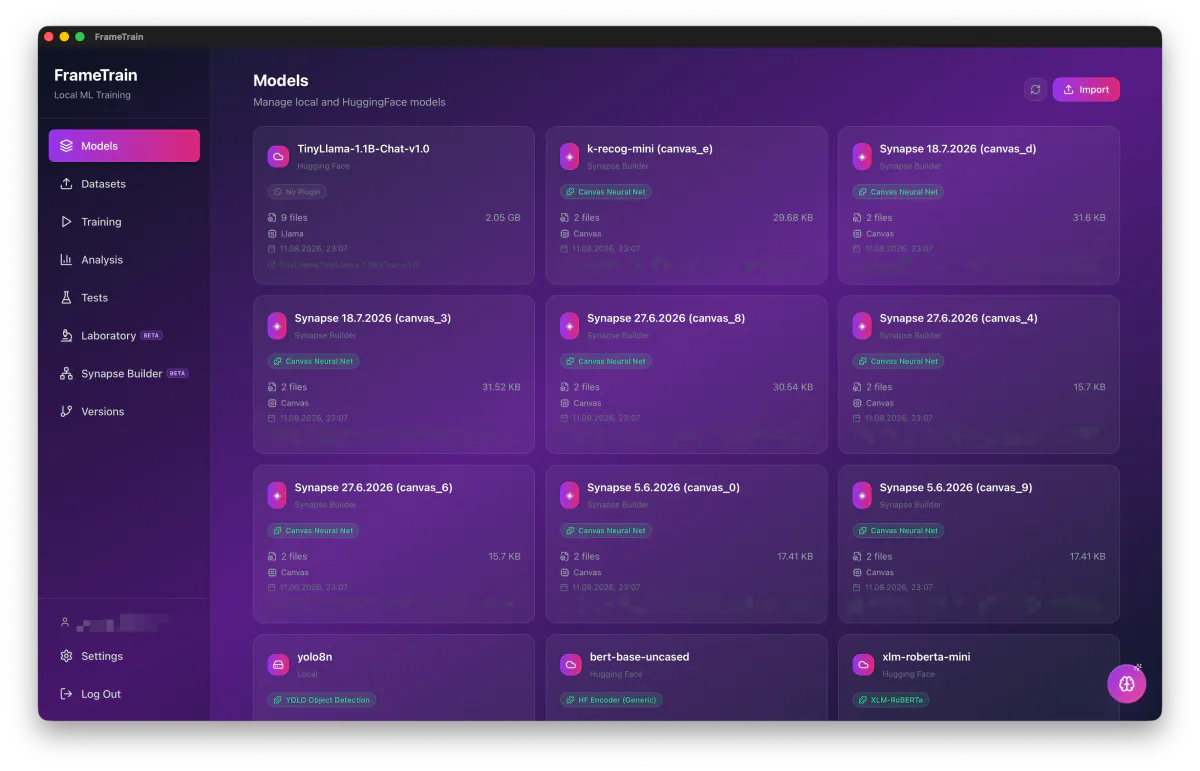
The model overview lists everything FrameTrain knows about: models imported from HuggingFace, weights stored locally, and networks you built yourself in the Synapse Builder. Each card shows file count, size on disk, storage path and the plugin responsible for that model. Models without a matching plugin are flagged up front instead of failing once training starts.
Model overview: TinyLlama, xlm-roberta, YOLO and custom canvas networks side by side, with size, date and the plugin in charge.
Import from HuggingFace by repo ID
Size, file count and storage path per model
Plugin detection for XLM-RoBERTa, YOLO, Llama and more
03
Datasets – Parquet, flat files and splits
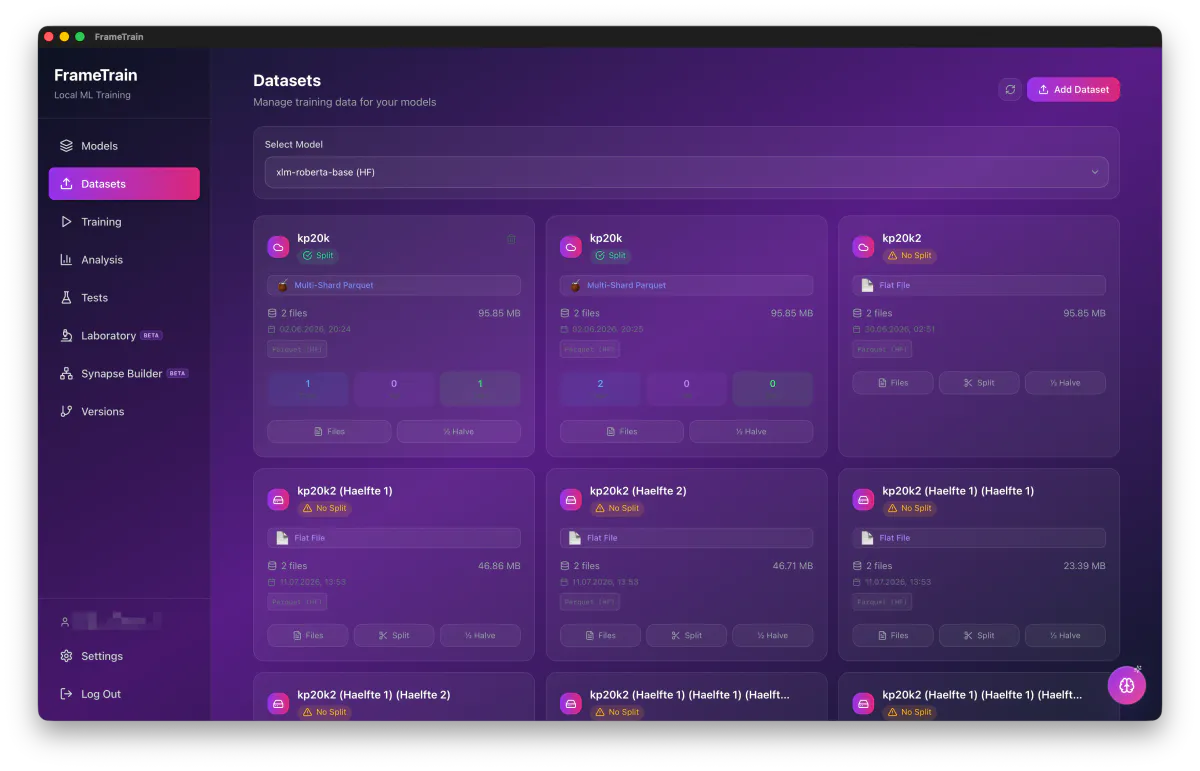
Datasets belong to a model: the selector at the top filters the list down to what fits the model you picked. FrameTrain reads multi-shard Parquet natively, shows file size and modification date, and flags whether a train/val/test split already exists. If one is missing, you split the dataset right in the app – halving included.
Datasets per model, with format, size and split status. “No split” is a hint, not an error – splitting happens right here.
Multi-shard Parquet supported natively
Train/val/test split without touching the command line
Compatibility check against the selected model
04
Dataset Builder – label your own datasets
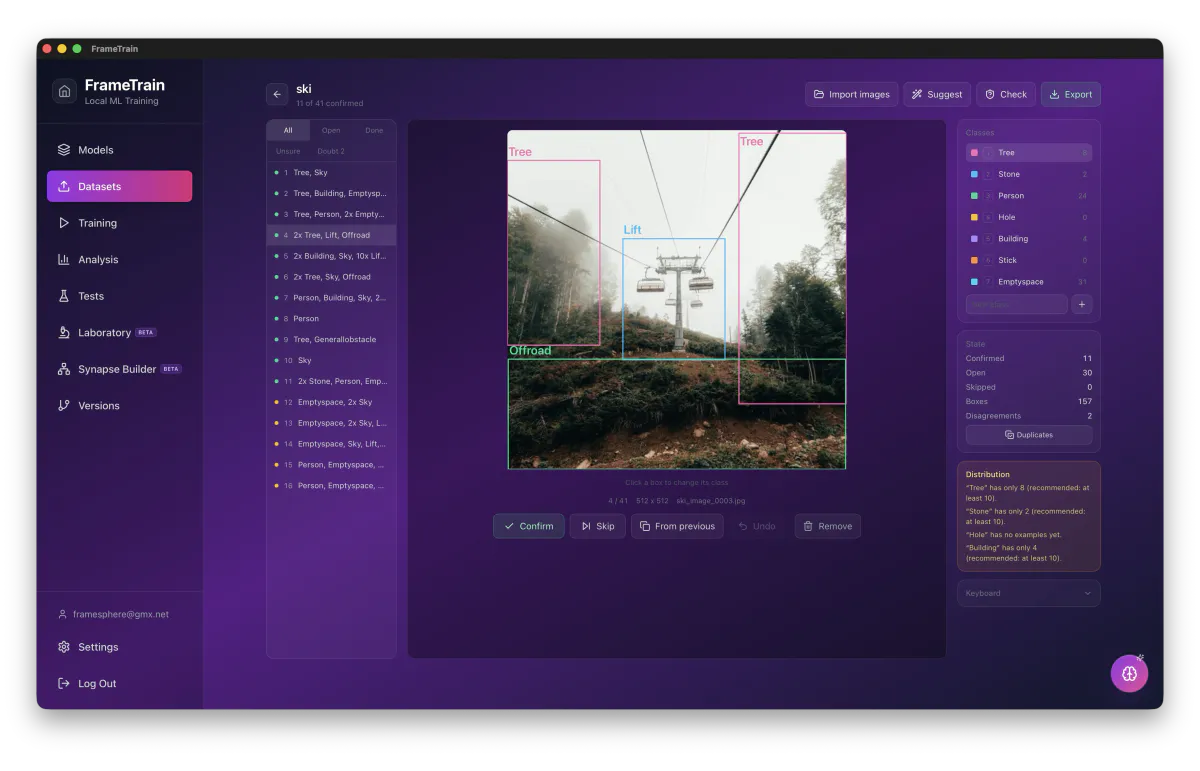
Since version 1.3.4 you build datasets right inside FrameTrain. The image workbench shows the idea: drag boxes, pick the class with a number key, confirm with Enter. A trained model can make suggestions, the “Uncertain” filter brings the hardest cases forward, and on the right you see which classes still have too few examples. Besides images there are project types for texts, recordings, transcripts and video segments.
Labeling by keyboard, with suggestions and warnings about class balance.
Seven project types for image, text, audio and video
Model suggestions, least certain first
Export straight into the format of the matching training plugin
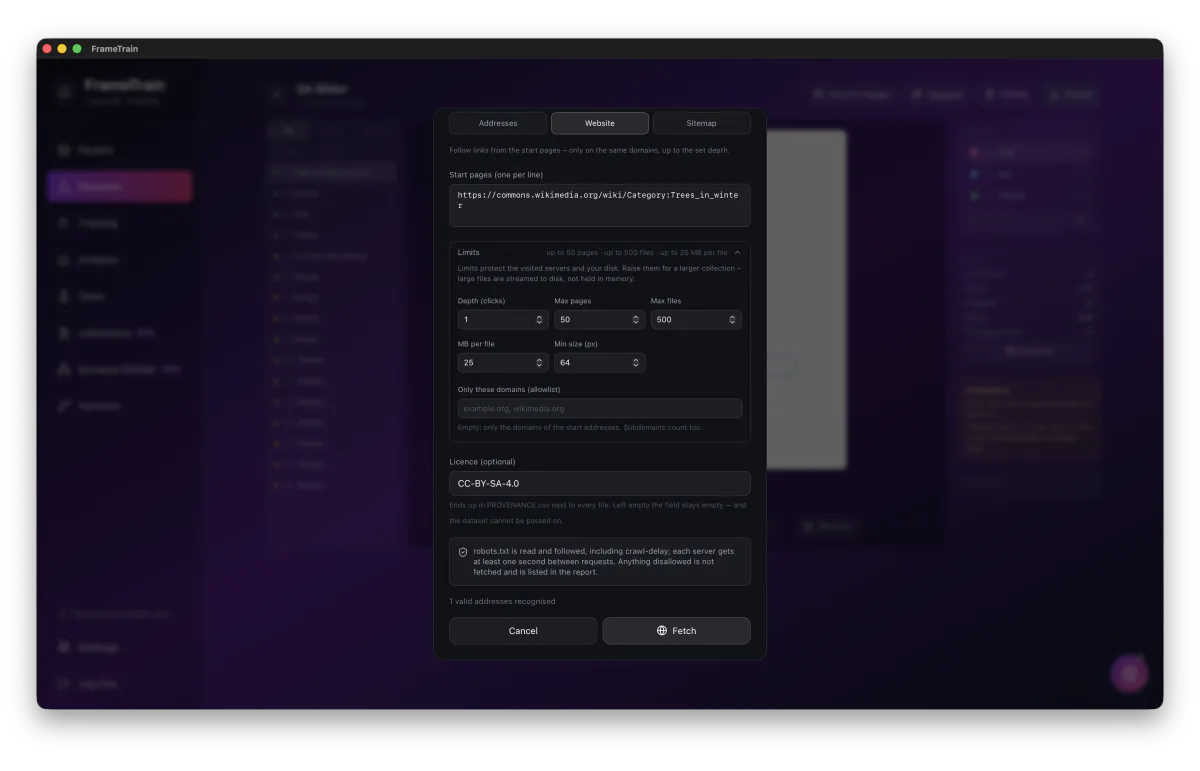
Instead of downloading files one by one, you give the builder URLs, whole websites or a sitemap. FrameTrain follows links only up to the chosen depth and only on the same domains, keeps limits for pages, files and file size, and respects robots.txt including Crawl-delay. Every fetched file gets its URL, source page and license in PROVENANCE.csv.
Website mode with the limits expanded. robots.txt is always respected.
Configure training – hyperparameters, LoRA and QLoRA
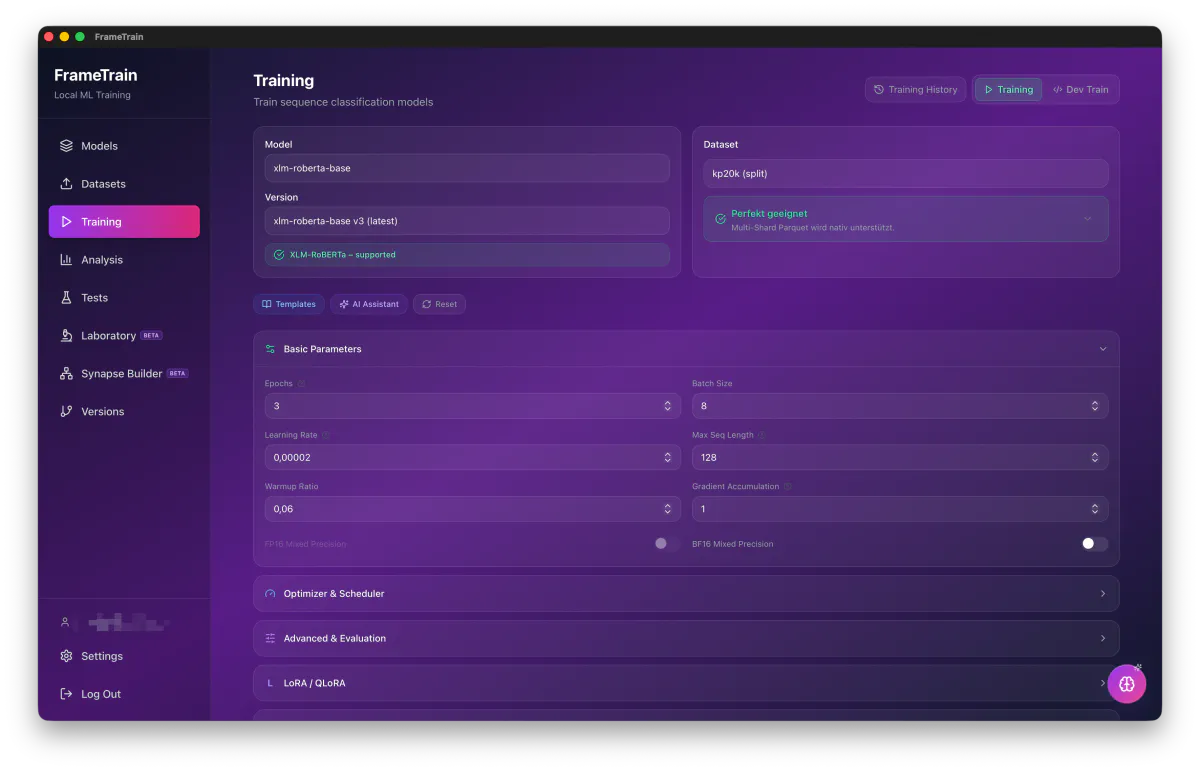
The training screen puts model, version and dataset side by side and checks up front whether the plugin supports that combination. Base parameters are open by default: epochs, batch size, learning rate, max sequence length, warmup ratio and gradient accumulation. Optimizer & scheduler, advanced & evaluation, and LoRA / QLoRA expand when you need them. Mixed precision switches per backend – FP16 stays locked where the hardware wants BF16.
Training configuration for xlm-roberta-base: base parameters open, optimizer, evaluation and LoRA/QLoRA one level down.
LoRA and QLoRA as their own configuration section
Templates and the AI assistant supply sane starting values
FP16 and BF16 mixed precision depending on hardware
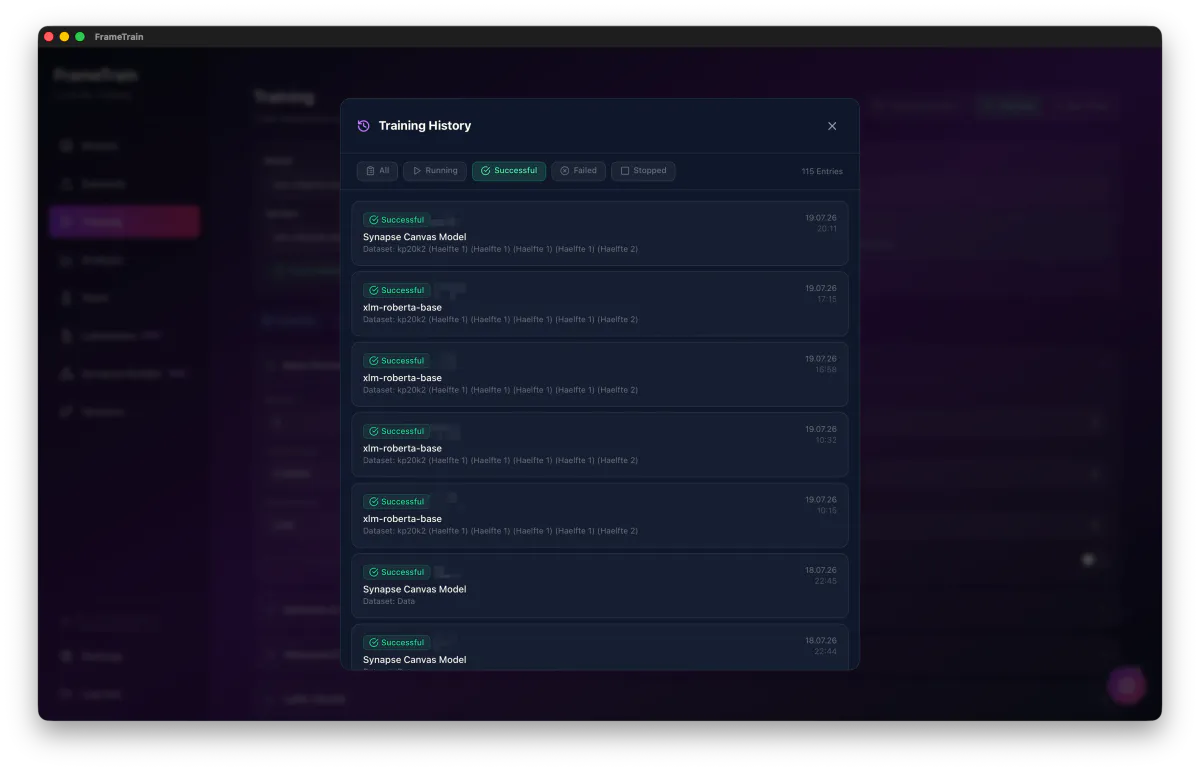
The history collects every run with status, duration, model and dataset used, filterable by running, successful, failed and stopped. Months later you can still tell which dataset produced which result – the question experiments without a log keep failing on.
Training history with status filters. The dataset used is attached to every entry.
Filter by running, successful, failed and stopped
Dataset and model logged per run
Timestamp and runtime at a glance
08
AI training analysis – metrics in plain language
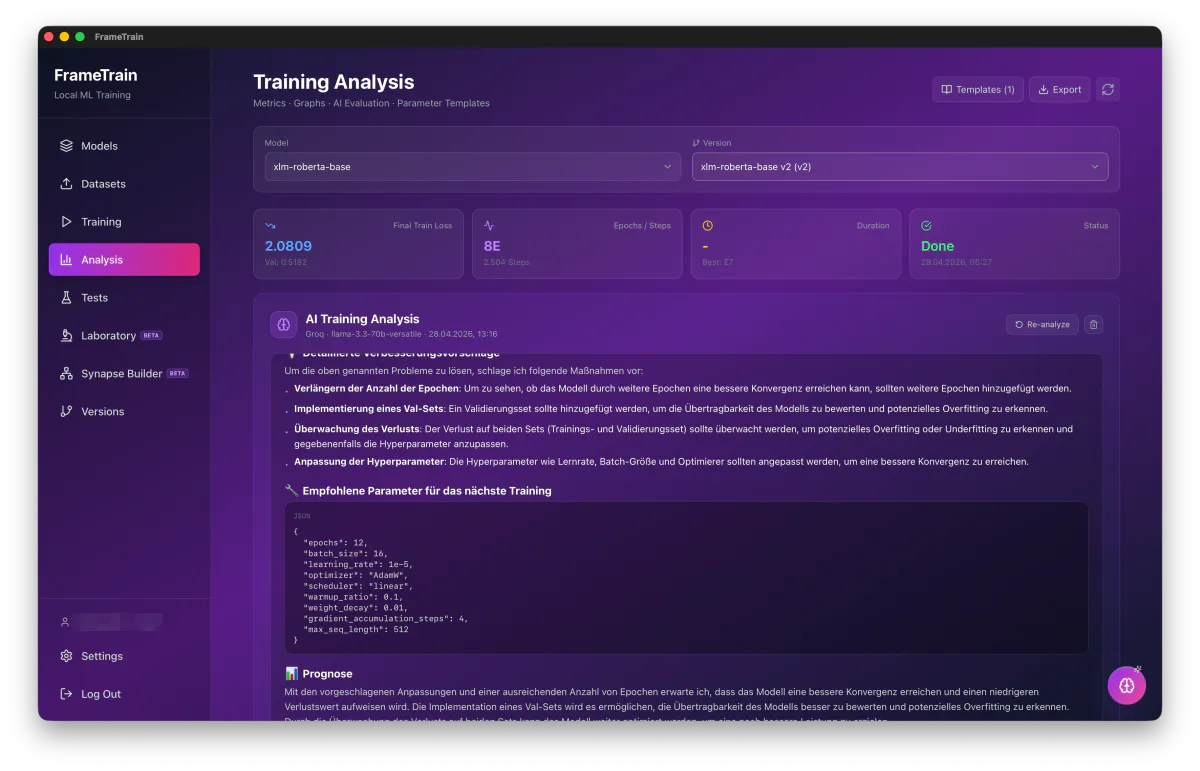
FrameTrain sends a run's metrics to a language model of your choice and gets back an assessment in plain language: what went wrong, which measures help, and which parameters the next run should start with. The parameter suggestion arrives as a JSON block you can save as a training template in one click.
AI training analysis for a specific model version: diagnosis, recommended parameters, forecast.
An assessment in prose instead of raw number series
Parameter suggestions can be saved as a training template
AI coach – follow-up questions in the panel's context
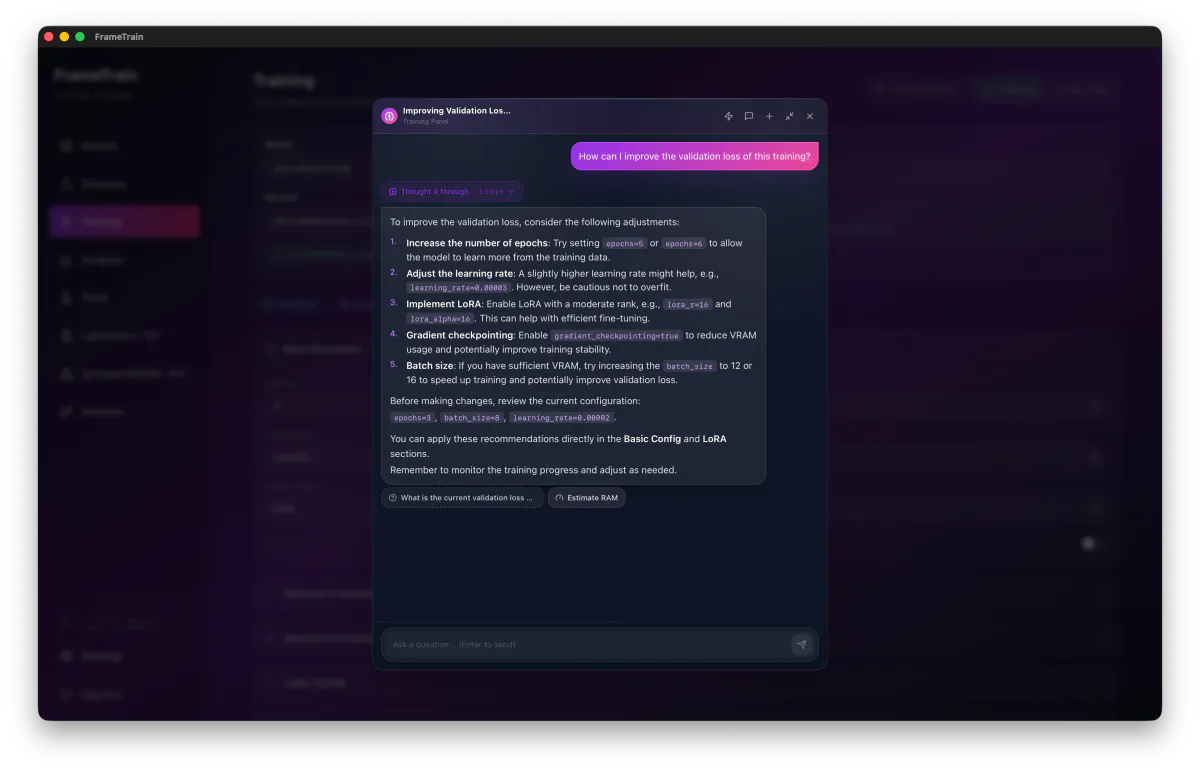
The AI coach is a chat that knows which panel you are standing in. Ask it how to improve validation loss for this run and it answers against the values actually loaded rather than in generalities – learning rate, dropout, weight decay, LoRA capacity. Concrete suggestions are applied via buttons right below the answer, and typing / in the input field opens prepared questions for the page.
The coach sits on top of the panel it draws its context from – here the training panel.
Knows the state of the current page with every message
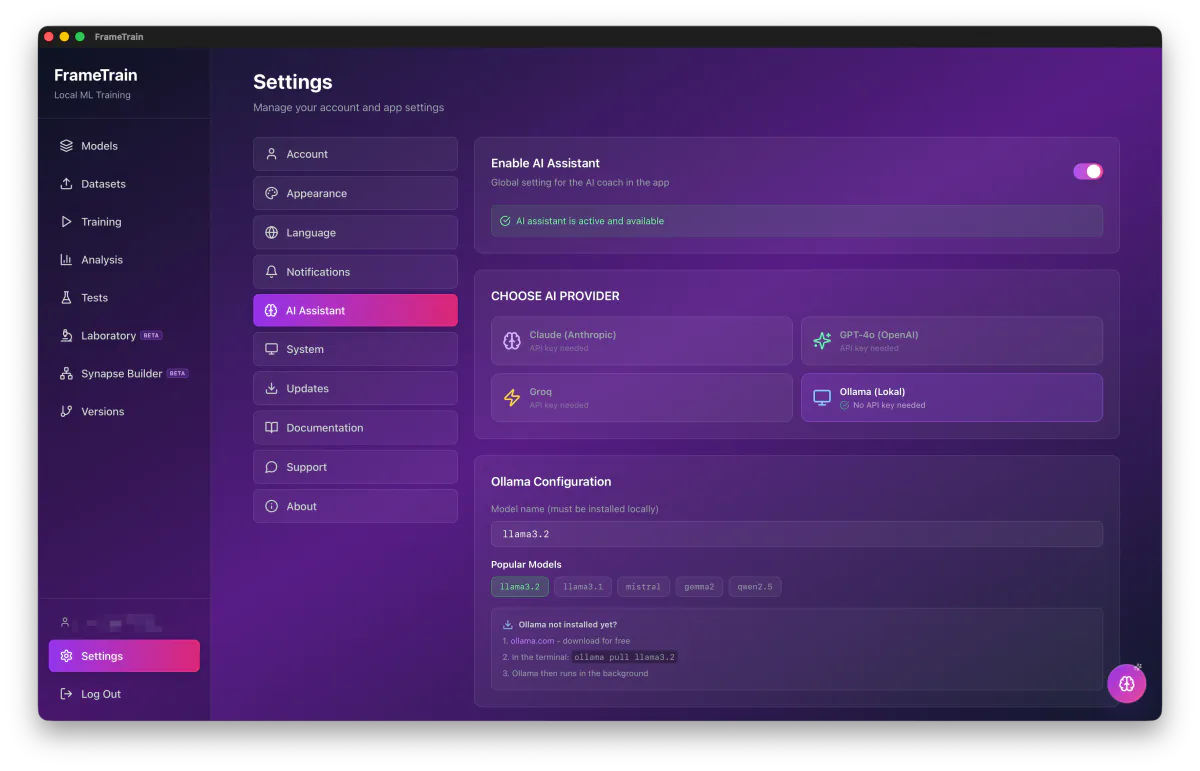
You decide which language model powers the coach, analysis and assistants: Claude, OpenAI and Groq run on your own API key, Ollama fully locally without a key. Each provider keeps its own key, so switching never loses one. The token budget from Minimal to Unlimited sets how detailed and thorough every AI feature is. If you want no AI features at all, switch the assistant off globally. Training itself is independent of this and always runs on your hardware.
Provider choice for the AI features. Ollama runs locally and needs no API key.
Ollama locally, no API key, no data leaving your machine
One key per provider, stored securely in the system keychain
Five-level token budget, AI can be switched off globally
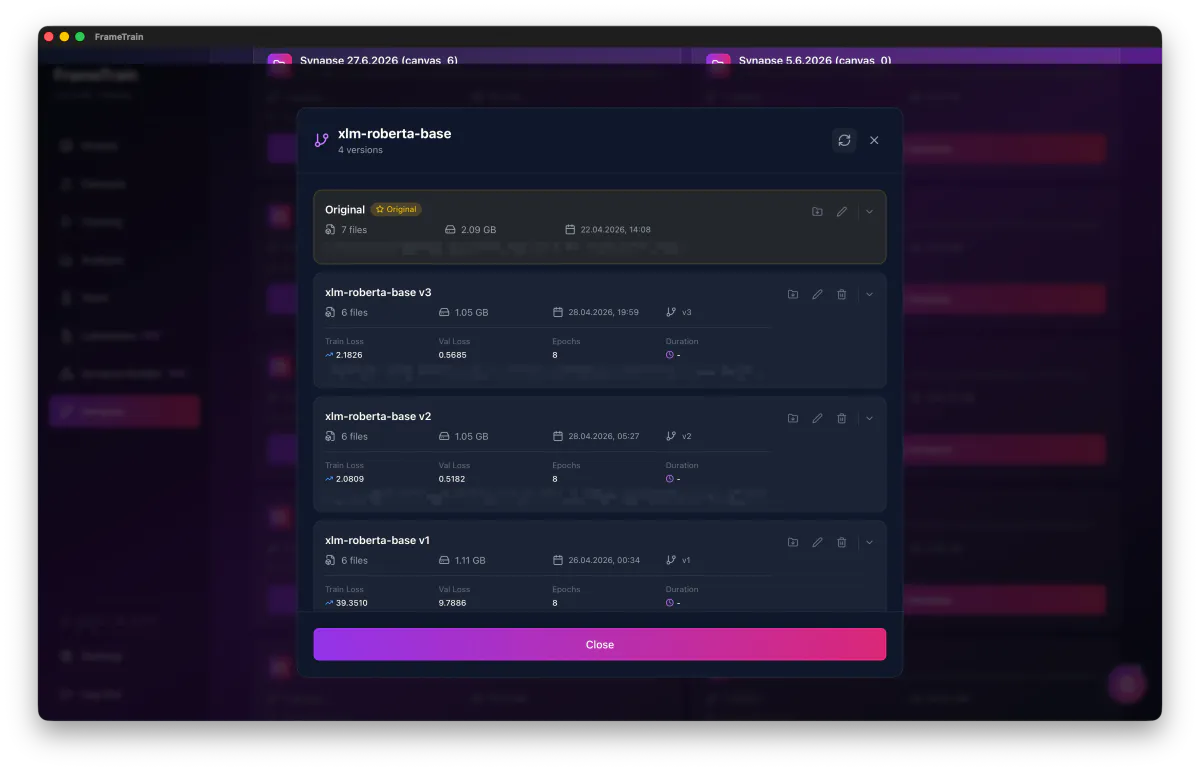
A training run overwrites nothing; it creates a new version. The version list shows train loss, validation loss, epochs, size and storage path per state, and the imported original stays untouched. Rolling back means selecting the older version.
Four states of the same model. Train and validation loss per version show which run actually helped.
The imported original is always preserved
Metrics and size per version
The storage path of every version is visible
12
Laboratory – test trained models on real samples
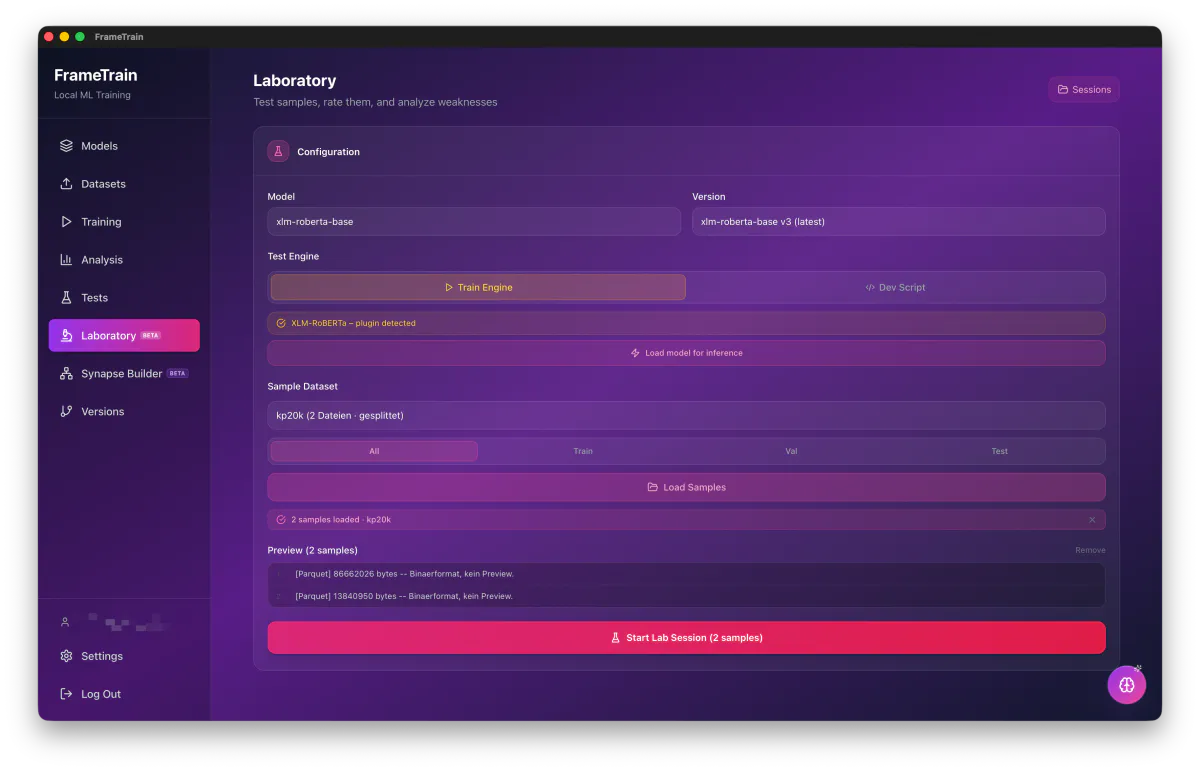
In the laboratory you load individual samples from train, val or test and let the trained version answer them: pick test engine or dev script, load the model for inference, load samples, start the session. A loss value alone simply does not answer whether a model is useful in practice.
Laboratory configuration: version, engine and sample selection before the session starts.
Samples pulled specifically from train, val or test
Train engine or your own dev script
Sessions are kept for comparison
13Beta
Synapse Builder – architecture as a graph
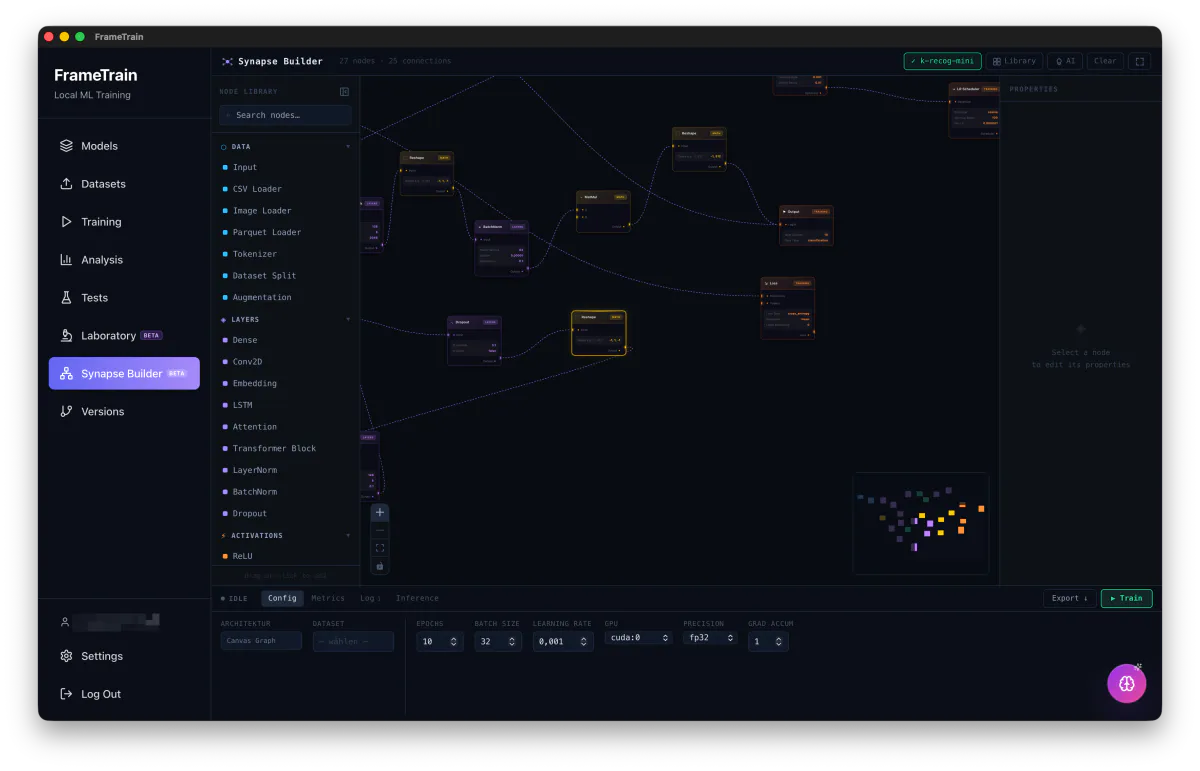
The Synapse Builder assembles networks from nodes: input, CSV, image and Parquet loaders, tokenizer, dataset split, augmentation, plus dense, Conv2D, embedding, LSTM, attention, transformer block, LayerNorm, BatchNorm and dropout. The training bar at the bottom carries epochs, batch size, learning rate, GPU, precision and grad accum – runs start from the same window.
Synapse Builder with 27 nodes and 25 connections. The training bar at the bottom starts the run straight from the canvas.
Node library for data, layers and activations
Start training directly from the canvas
Architecture can be exported
Try it yourself
FrameTrain runs on Windows, macOS and Linux and trains entirely on your own hardware. No cloud, and no data leaving your network.